


You do not need a paid tool to plan your Instagram content. Learning how to schedule instagram posts free is easy, because Instagram and Meta both offer free schedulers built in. You can schedule posts, Reels, and carousels in the Instagram app, or plan from your computer with Meta Business Suite. This guide shows you both ways step by step, with the real limits, how to schedule Stories, and the best free third party tools for when you outgrow the built in options. By the end, you will have a simple weekly routine that keeps your feed active without daily posting.
The Short Answer: 3 Free Ways to Schedule Instagram Posts
There are three free ways to schedule Instagram posts. First, the Instagram app itself: any public account can schedule posts, Reels, and carousels for free, up to 25 posts a day and up to 30 days ahead. Second, Meta Business Suite: Meta’s free tool on a computer or in its own mobile app, which also schedules Stories. Third, a free scheduler app like Buffer, Later, or Metricool, which adds a calendar view and works across several networks. For most beginners, the Instagram app is enough to schedule instagram posts free. Use Meta Business Suite when you want to plan on a computer or schedule Stories.
What You Can and Cannot Schedule for Free
Before you start, know the limits. In the Instagram app, you can schedule photo posts, carousels of up to 20 photos and videos, and Reels, up to 25 a day and up to 30 days ahead. Your account must be public. A private account does not get the scheduling option. You cannot schedule Stories in the app, and you cannot schedule collab posts, posts with product tags, sponsored posts, or fundraisers. Meta Business Suite covers more: it schedules posts, Reels, and Stories for Instagram and Facebook, on a computer or in the mobile app. It needs a professional account connected to a business portfolio. Those are the limits when you schedule instagram posts free in the app or in Business Suite.
How to Schedule a Post in the Instagram App
This is the fastest way to schedule instagram posts free, and it takes less than a minute once you know the steps. Follow the official steps from Instagram’s Help Center.
- Open Instagram and tap Create. Tap the plus icon at the top, or swipe right from your feed, then choose Post or Reel.
- Pick your photo, video, or carousel. Choose up to 20 photos and videos for a carousel, then tap Next.
- Write your caption. Add your caption, hashtags, and location now. You cannot edit the caption after scheduling without deleting the post.
- Tap More options. Find this below the caption box, before you share.
- Turn on Schedule this post. For a Reel, it says Schedule this reel. Pick a date and time, then tap Done.
- Tap Schedule to confirm. Your post is now set. Instagram will publish it at the time you chose.
To see your scheduled posts, go to your profile, tap the menu, then Scheduled content. There you can edit the time, or delete a post you no longer want. You can schedule up to 25 posts a day, but most creators do best with one or two a day. For the official steps and the latest limits, see the Instagram Help Center page on scheduled posts.
How to Schedule Instagram Posts on a Computer
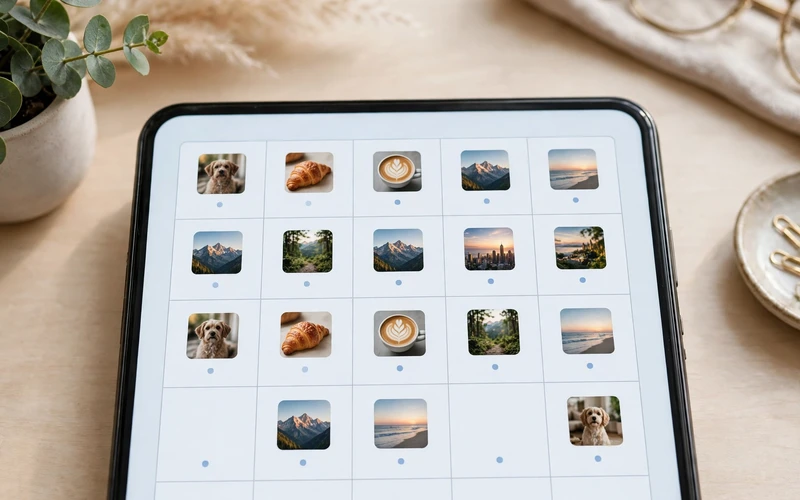
Planning on a phone is fine for one post, but a computer is better for planning a whole week. Meta Business Suite is Meta’s free dashboard for Facebook and Instagram, and it works on a computer at business.facebook.com and in the Meta Business Suite mobile app. To use it, you need a professional Instagram account connected to a business portfolio, with full control of the account or content permission. Once connected, open Business Suite, click Create post, and choose your Instagram account. Upload your photos or video, write your caption, and pick a date and time. On a computer, an Instagram post can have up to 10 photos. This is the best free way to schedule instagram posts free when you plan at a desk, because you can type captions faster, drag posts on a calendar, and manage Facebook at the same time.
Free Scheduler Tools: Buffer, Later, and Metricool
When Instagram is one of several networks you post to, a scheduler app saves time. Buffer, Later, and Metricool all offer free plans, and all three publish to Instagram through Meta’s official API. Buffer’s free plan covers a small number of channels with a set number of scheduled posts, and it shows a simple queue for what is coming next. Later’s free plan adds a visual calendar and a link in bio tool, which suits creators who plan by look. Metricool’s free plan adds basic analytics, so you can see which scheduled posts did best. All three let you schedule instagram posts free on a basic plan, and all three need a professional Instagram account to auto publish. You can see Buffer’s current plans on the Buffer pricing page. Start with the free plan, and pay only when you manage several accounts or need more scheduled posts than the free plan allows.
How to Schedule Instagram Stories
Stories are the one format the Instagram app will not schedule. For Stories, use Meta Business Suite, which is free and schedules them on a computer or in the mobile app. Open Business Suite, click Create story, choose your Instagram account, upload your photo or video, add text or stickers, and pick a date and time. Your Story will publish at that time. Some paid plans, like Meta One, can also schedule Stories in the app, but Business Suite does it for free, so there is no need to pay. Plan your Stories in batches. Make three or four at once, schedule them across the week, and your account stays active even on busy days. That is how you schedule instagram posts free as Stories, with no paid plan. Stories last 24 hours, so schedule them for the hours your followers are most active.

When Is the Best Time to Schedule?
Learning to schedule instagram posts free is only half the job. The other half is picking the right hour. In general, weekday afternoons work well for most accounts, and evenings work well for entertainment and lifestyle content. But your audience has its own habits, and only your own data can show them. Check Instagram Insights for when your followers are most active, then schedule your posts for those hours. Test two or three different times for two weeks, and keep the ones that get the most likes, comments, and shares. The same idea applies on every platform. Our guide to the best time to post on TikTok shows how to find your best hours with analytics, and the method works for Instagram too.
How to Manage, Edit, and Delete Scheduled Posts
Once you schedule instagram posts free, they are easy to change before they go live. In the Instagram app, go to your profile, tap the menu, then Scheduled content. Tap a post to see its date and time, edit the time, or delete it. In Meta Business Suite, open the Planner or the Content section, find the post on the calendar, and click it to edit or delete. In a third party scheduler, open the calendar view and drag the post to a new time, or delete it. Check your scheduled posts once a week. Delete posts about events that have passed, and move posts that clash with breaking news.
Common Mistakes to Avoid
- Scheduling everything and never engaging. Reply to comments in the first hour after a post goes live.
- Using a private account. The app only offers scheduling on public accounts, so switch to public first.
- Forgetting Stories. Stories need Business Suite, not the app, so plan them there.
- Scheduling months ahead. Trends change fast. Plan one or two weeks ahead, not three months.
- Ignoring Insights. Schedule for the hours your followers are active, not the hours you are free.
- Posting the same caption everywhere. Write a fresh caption for Instagram instead of copying one from another network.
Frequently Asked Questions
Can I schedule Instagram posts for free?
Yes. You can schedule instagram posts free in the Instagram app or in Meta Business Suite. The app needs only a public account, and Business Suite needs a professional account. Both are free, and neither needs a paid tool.
How far ahead can I schedule Instagram posts?
In the Instagram app, you can schedule up to 25 posts a day, up to 30 days ahead. Meta Business Suite does not publish a maximum window for Instagram, so check the date picker when you schedule. Third party tools set their own limits by plan.
Can I schedule Instagram Stories for free?
Not in the Instagram app, which does not schedule Stories. Use Meta Business Suite, which is free and schedules Stories on a computer or in the mobile app. Some paid Meta plans can also schedule Stories in the app.
Do I need a business account to schedule Instagram posts?
For the Instagram app, no. Any public account can schedule posts, Reels, and carousels. For Meta Business Suite and third party schedulers, yes. They need a professional account, which is free to switch to in your Instagram settings.
What is the best free Instagram scheduler app?
For Instagram only, the Instagram app itself is the best free scheduler, because it is built in and free. For several networks at once, Buffer, Later, and Metricool all have free plans. Try the built in app first, and move to a scheduler only when you need a calendar view or cross posting.
Final Thoughts: How to Schedule Instagram Posts Free
Learning how to schedule instagram posts free takes one minute to learn and saves hours every week. Use the Instagram app for quick scheduling on your phone, Meta Business Suite for planning on a computer and for Stories, and a free scheduler app only when you manage several networks. Pick your best hours from Insights, plan one or two weeks ahead, and reply to comments when your posts go live. Start today: schedule your next three posts, then check back in a week to see how they did. For more social media guides, browse the Social Media section on this site, and visit the TechOnPeak homepage for the latest tech guides.
