

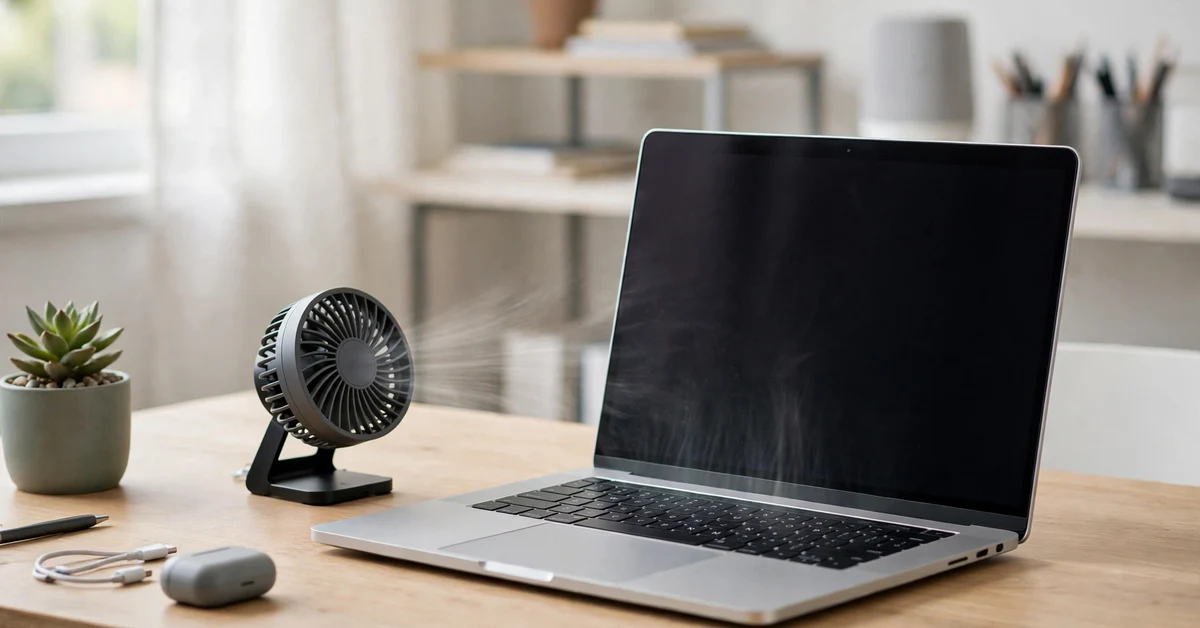
Is your laptop too hot to touch, or does the fan sound like a small jet engine? Learning how to fix laptop overheating windows 11 is easier than most people think, because most cases have a simple cause. A blocked vent, a heavy app running in the background, or a power mode set to full speed can push the heat up fast. This guide gives you 8 fixes for laptop overheating windows 11, in order from easiest to hardest. You do not need special tools for the first six fixes, and most take only a few minutes. Work through them one by one, and test your laptop after each step.
Why Is My Laptop So Hot? Common Causes
A laptop makes heat when the processor and graphics chip work hard, and the fan pushes that heat out through the vents. When something blocks that flow, the heat builds up. Here are the most common reasons for windows 11 laptop overheating.
- Dust in the vents. Dust builds up over months and blocks the air path, so the fan spins faster.
- Blocked vents. A bed, blanket, couch, or your lap can cover the air intake on the bottom.
- Heavy background apps. Cloud sync, game launchers, and video tabs keep using the processor in the background.
- Best performance mode. The processor runs at full speed more often. Microsoft notes this mode may cause the device to run warmer.
- Gaming and video editing. Games push the processor and graphics chip together, so a dirty laptop heats up fast.
- Old thermal paste. The paste between the processor and heat sink dries out over years, so heat moves away slowly.
- Outdated drivers or BIOS. Old drivers can run the fan badly or keep the processor busy for no reason.
- An ageing battery. A worn battery can swell or run hot while charging, which is a safety problem.
The fixes below follow the same order, so a laptop overheating windows 11 problem gets the simple fix first.
How to Fix Laptop Overheating Windows 11: 8 Quick Fixes
Work through these 8 fixes in order. Every step below is a laptop overheating fix that works on its own. After each one, use your laptop the same way as before for ten minutes, and see if it feels cooler. Stop when the heat is gone.
1. Move It to a Hard, Flat Surface and Lift the Back
This is the fastest way to learn how to cool down laptop heat, and it costs nothing. Always use your laptop on a desk or a table. Never use it on a bed, blanket, or your lap, because soft surfaces block the air intake. Lift the back edge with a small book or a stand, so cool air can flow under it. This one change alone can ease laptop overheating windows 11 for many users.
2. Close Heavy Apps with Task Manager
Open Task Manager with Ctrl, Shift, and Esc. Click the CPU column so the heaviest app sits at the top. If an app you do not need is using a lot of CPU, select it and click End task. Close extra browser tabs and shut down game launchers when you are not playing. Then turn off unneeded Startup apps. Do not turn off your antivirus. This step alone can be a full laptop overheating windows 11 fix, because one stuck app can keep the processor busy all day.
3. Change the Power Mode to Balanced
Press Windows and I, then go to System, then Power and battery. Find Power mode and set it to Balanced for both Plugged in and On battery. If it is set to Best performance, change it now, because that mode pushes the processor to full speed and makes more heat. For light work, try Best power efficiency instead. This is the simplest laptop overheating windows 11 fix here, and it takes less than a minute.
4. Clean the Vents and Fans
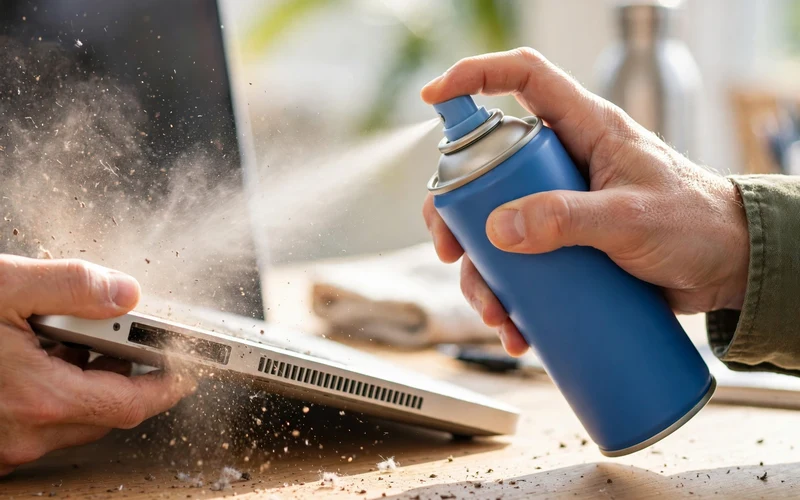
Dust is the most common physical cause of laptop overheating windows 11. Turn it off and unplug it first. Hold a can of compressed air upright, and blow short bursts into the side and back vents. Do not hold the can upside down, and do not spin the fan with the air. Never use a vacuum cleaner on the vents, because it can build up static. If your laptop is still under warranty, do not open it. Repeat this fix every few months.
5. Update Windows, Drivers, and BIOS
Open Settings, go to Windows Update, and click Check for updates. Install everything it offers, then restart. Next, visit your laptop maker’s support site and check for the latest BIOS and chipset drivers for your exact model. Install them only while plugged in, and do not turn the laptop off during a BIOS update. Microsoft lists updates and power settings among the main steps to improve PC performance. See the official Microsoft Support guide to improving PC performance in Windows.
6. Turn Down Visual Effects and Startup Apps
Windows 11 uses small animations and visual effects that add a little extra load. Search for Adjust the appearance and performance of Windows, open it, and pick Adjust for best performance. This turns off most effects at once. If you want a nicer look, turn back on only Smooth edges of screen fonts and Show thumbnails instead of icons. Then turn off startup apps you do not need. This is a small laptop overheating windows 11 fix, but it helps on older laptops.
7. Cool Down Gaming Sessions
Laptop overheating while gaming is common, because games push the processor and the graphics chip together. Lower the game settings: drop the resolution one step, turn off ray tracing, and cap the frame rate at 60. Close the browser and other apps before you play. Play in a cool room, and take a short break between long sessions. Some gaming laptops have a quiet or balanced mode in the maker’s app. Try that mode first. HP explains the same ideas in its own guide, which you can read on the HP page about how to cool down a gaming laptop.
8. Use a Cooling Pad
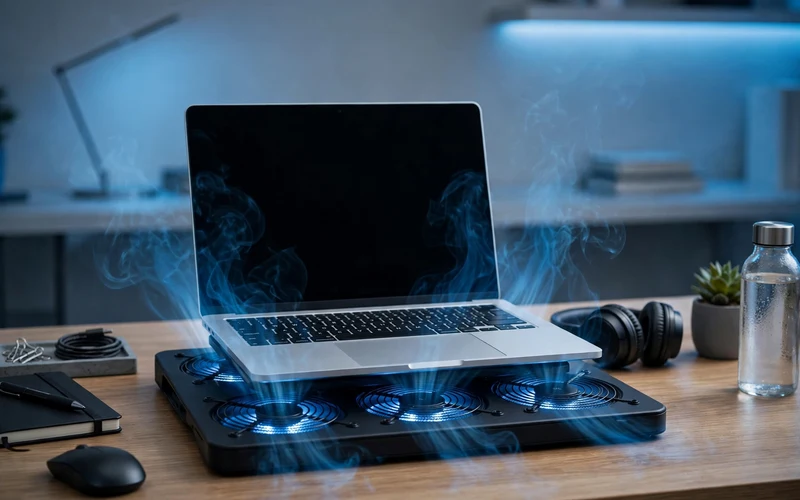
A cooling pad is a stand with fans that blows cool air into the bottom of the laptop. It helps most on a desk, when the bottom vents are clear. Pick a pad that fits your laptop size. It will not fix a laptop full of dust, so clean the vents first. A simple raised stand without fans also helps. Either option is cheap, and it is the easiest hardware fix for laptop overheating windows 11.
How to Check If Your Laptop Is Still Too Hot
After these laptop overheating windows 11 fixes, check the signs. The laptop should feel warm, not burning hot. The fan should slow down when you stop heavy work. The laptop should not shut down by itself. Free tools such as HWMonitor show the processor temperature live, but safe limits differ. If it still shuts down, the problem is likely hardware.
When to Get Professional Help
Two fixes need care, and one needs urgent action. First, thermal paste. Replacing it can help an old laptop, but you must open the laptop, remove the heat sink, clean the old paste, and apply a small amount of new paste. If you are not sure how, take it to a repair shop. A bad repaste can make the heat worse, and opening the laptop can void the warranty. Second, the battery. If the bottom case looks swollen, stop using the laptop and do not charge it. Do not press or puncture the battery. Third, a grinding or clicking fan may be worn out, and a repair shop can replace it. These are the only laptop overheating windows 11 fixes most people should not do alone.
How to Keep Your Laptop Cool Every Day
Once your laptop is cool again, a few small habits will keep it that way and stop laptop overheating windows 11 from coming back. Use it on a hard surface, and clean the vents every two or three months. Keep Windows and drivers updated, and check Task Manager once a week. Close tabs you do not need, and restart at least once a week. Do not leave a running laptop inside a bag, and do not block the vents. For light work, choose tools that do not push the processor hard. Our guide to the best free AI tools for students shows light tools that run well on older laptops, and our step-by-step Canva guide for beginners shows how to do design work without heavy software.
Frequently Asked Questions
Why is my laptop overheating on Windows 11?
The most common reasons are dust in the vents, blocked air intake, heavy background apps, and Best performance mode. For laptop overheating windows 11, start with the easy fixes: hard surface, close heavy apps, Balanced mode, and clean vents.
Is it normal for a laptop to get hot while gaming?
Yes, some heat is normal, because games push the processor and graphics chip hard. But the laptop should not shut down, and the fan should calm down after you stop playing. If laptop overheating windows 11 makes it shut down, clean the vents and lower the game settings.
How do I fix a laptop fan running loud on Windows 11?
Open Task Manager, sort by CPU, and close heavy apps you do not need. Then set the power mode to Balanced, and clean the vents with compressed air. A laptop fan running loud fix usually comes from one of these three steps.
Can a Windows 11 update cause overheating?
Yes, it can happen. A new update may keep a background task busy, or a driver may not work well with it. Install the next update, because makers often fix the problem fast. Check Task Manager to see if Windows Update is using a lot of CPU.
Should I replace the thermal paste myself?
Only if you know how to open your laptop safely and your warranty has ended. Thermal paste sits between the processor and the heat sink, and a bad job can make the heat worse. If unsure, a repair shop can do it for a small fee.
Final Thoughts: How to Fix Laptop Overheating Windows 11
Learning how to fix laptop overheating windows 11 comes down to one idea: give the laptop air, and give the processor less useless work. Move it to a hard surface, close heavy apps, set the power mode to Balanced, and clean the vents. Those four steps fix most hot laptops. If the laptop still shuts down or the battery looks swollen, get professional help. Start with the first fix today. For more simple tech guides, visit the TechOnPeak homepage.
