

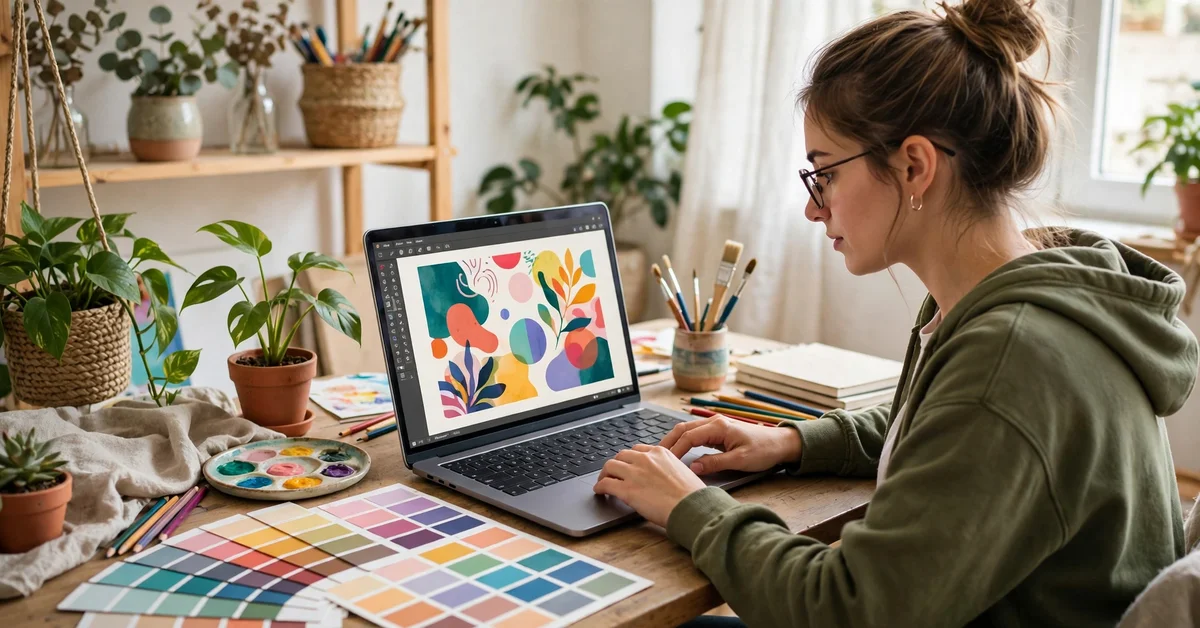
Canva looks simple, and that is why so many people love it. You pick a template, change a few words, and your design looks professional. But the first screen can confuse you if you have never used a design tool. This guide shows how to use Canva for beginners step by step.
By the end of this canva tutorial for beginners, you will know how to use Canva from your first click to your first download. You will pick the right size, use templates, add text and photos, and save your work. No design experience needed, and you pay nothing to start. All you need is a browser and 30 minutes. This guide comes from TechOnPeak.
What Is Canva?
Canva is a free online design tool that runs in your web browser. You use it to make social media posts, posters, presentations, logos, and resumes. Instead of a blank page, you start from a template and change its text, colours, and images.
Canva works with a simple drag and drop editor. You click an element, drag it where you want it, and drop it in place. Your designs save automatically, so you can start on a laptop and finish on a phone. That is why students, teachers, and small businesses learn how to use Canva for quick graphics.
How to Use Canva for Beginners Step by Step
The fastest way to learn how to use Canva is to make one complete design. Follow these seven steps to create a simple social media post.
Step 1: Create Your Free Canva Account
Go to canva.com and click Sign up. You can sign up with your email address, or with a Google, Facebook, or Apple account. The free plan needs no credit card and never expires.
Step 2: Pick a Design Type
After you sign in, click Create a design at the top of the home page. You will see types such as Instagram Post, Presentation, Poster, Logo, and Flyer. Pick the type that matches what you want to make, because each type has the correct size built in. Pick the right size when you learn how to use Canva, because a wrong size stretches your design.
Step 3: Choose a Template
When your blank canvas opens, click Templates in the left side panel. You will see hundreds of ready made designs for your chosen size. Click any template to load it on your canvas. Templates with a small crown icon are Pro templates, which need a paid plan. Templates without a crown are free.
Step 4: Edit the Text
Double click any text on the template to change it. Type your own words, then use the top toolbar to change the font, size, colour, and alignment. Text is where beginners spend most time when they learn how to use Canva, so take it slow. One main line in large text and one small supporting line is enough.
Step 5: Change the Colours
Click any coloured shape or background in your design. A colour box will appear in the top toolbar. Click it to open the colour picker, then choose a new colour. Use two or three colours only: one dark, one light, and one bright accent colour.
Step 6: Replace the Photos and Add Elements
Click any photo to select it, then replace it with your own image or a free stock photo. Upload your own photos, or search the Photos tab for free images. To add shapes, icons, lines, or stickers, click Elements and drag what you need onto the canvas. Drag a corner handle to resize, and press Delete to remove.
Step 7: Download and Share Your Design
When you are happy with your design, click Share in the top right corner, then click Download. Choose PNG for designs with text, because it keeps text sharp. Choose JPG for photo heavy designs, because the file size is smaller. Choose PDF if you plan to print. Now you know how to use Canva end to end.
Get to Know the Canva Editor
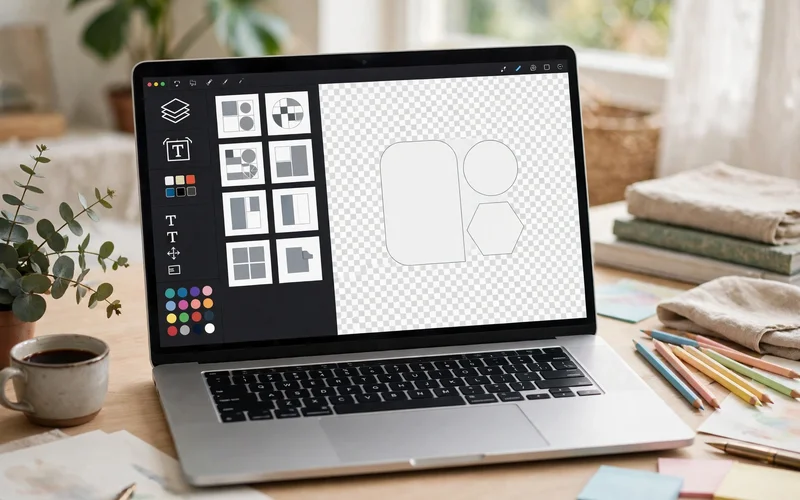
The Canva editor has three main parts. The big white area in the middle is your canvas, where your design lives. The panel on the left is your toolkit, with tabs for Templates, Elements, Uploads, Text, and Photos. The top toolbar holds the controls for font, size, colour, and alignment.
Text is the most used tool in the editor. Click Text to add a heading or body text, then click the text on the canvas to edit it. Images work the same way. Search free photos, upload your own, and drag them into place. Elements include shapes, lines, icons, and stickers. Use shapes for backgrounds and buttons.
Layers control which element sits on top of another. If a shape covers your text, right click the shape and send it backward, or right click the text and bring it forward. This fixes most layout problems beginners face. Spend ten minutes clicking each tab before your first project.
How to Use Canva Templates the Smart Way
Templates are the biggest shortcut in Canva. Pick the correct design type first, because that filters templates to the right size. Then search for your topic instead of scrolling through thousands of designs.
Choose a template for its layout, not for its exact colours or photos. Colours and photos take seconds to change, but a bad layout is hard to fix. A good template has clear space for your message, one strong photo, and no more than three text blocks.
3 Easy Beginner Projects to Try Today
The best way to learn how to use Canva is to finish three small projects. Each one teaches you a different part of the editor.
Project 1: A Social Media Post
Pick Instagram Post as your design type and search for a template about your topic. Change the headline to one short message, swap in a free photo, and set your colours. Download it as a PNG. This teaches you the full loop. For free tools that pair well with Canva, see our guide to the best free AI tools for students.
Project 2: A Poster or Flyer
Pick Poster as your design type. A poster is taller than a social media post, so it teaches you to work with vertical space. Add a headline at the top, one photo in the middle, and key details at the bottom. Keep the text large.
Project 3: A Short Presentation
Pick Presentation as your design type. Make five slides: a title slide, three slides with one idea each, and a closing slide. Keep each slide to one main point and very few words.
Canva Free vs Canva Pro: Which One Do You Need?
The free plan covers most of what a beginner needs, and it is the best place to learn how to use Canva. You get thousands of free templates, a large library of free photos and elements, custom sizes, and downloads in formats such as PNG, JPG, and PDF.
Canva Pro is the paid plan. It adds premium templates, the one click background remover, a Brand Kit that stores your colours, fonts, and logo, and a much larger stock photo library. Prices change by region, so check the current price on Canva’s official pricing page before you pay. To go deeper, explore the Canva Learn blog for free tutorials and courses.
7 Beginner Mistakes and How to Fix Them
Most beginner designs look off for the same few reasons. Here are the mistakes to watch for as you learn how to use Canva.
- Too many fonts. Use at most two fonts: one for headings, one for body text.
- Too much text. Cut your words in half. One clear message beats a paragraph nobody reads.
- Low contrast. Light text on a light photo is hard to read. Add a dark shape behind it.
- Elements too close to the edge. Leave a small margin around your design.
- Random colours. Pick two or three colours and reuse them on every element.
- Using a Pro template by accident. Check for the crown icon, because crown templates need a paid plan.
- Downloading in the wrong format. Use PNG for text heavy designs, JPG for photos, and PDF for print.
If a design still looks wrong after these fixes, step away for ten minutes and look again with fresh eyes. For more canva tips for beginners, read Canva’s own beginner’s guide to using Canva.
Frequently Asked Questions
Is Canva really free for beginners?
Yes. Canva has a free plan that needs no credit card, and it never expires. It includes thousands of free templates, photos, and design elements. You can learn Canva free without paying.
How long does it take to learn Canva?
Most beginners make their first good design in about 30 minutes. You can learn how to use Canva basics in one afternoon with this canva design tutorial.
Can I use Canva on my phone?
Yes. Canva has free apps for Android and iPhone, and your designs sync between your phone and your computer.
Do I need design experience to use Canva?
No. Canva is built for people who are not designers. Templates do the hard layout work, and the editor means you simply click, drag, and edit. Learning how to use Canva takes hours, not weeks, and this canva for beginners guide assumes no design experience.
Can I use my Canva designs for business?
Yes, you can use designs you make in Canva for your business. But check the licence rules for any stock photo or element you use, because some items have limits on commercial use.
Final Thoughts: Start Your First Design Today
Learning how to use Canva for beginners step by step is simpler than it looks. Create a free account, pick a design type, start from a template, and change the text, colours, and photos to make it yours. Your first design will not be perfect.
Finish the three projects here, and you will know the editor well enough to design anything. Keep your fonts and colours simple, leave space around your elements, and check your work before you download. For more software guides and free tools, browse the Software Guides section on TechOnPeak. Open Canva now, and make your first design today.
