

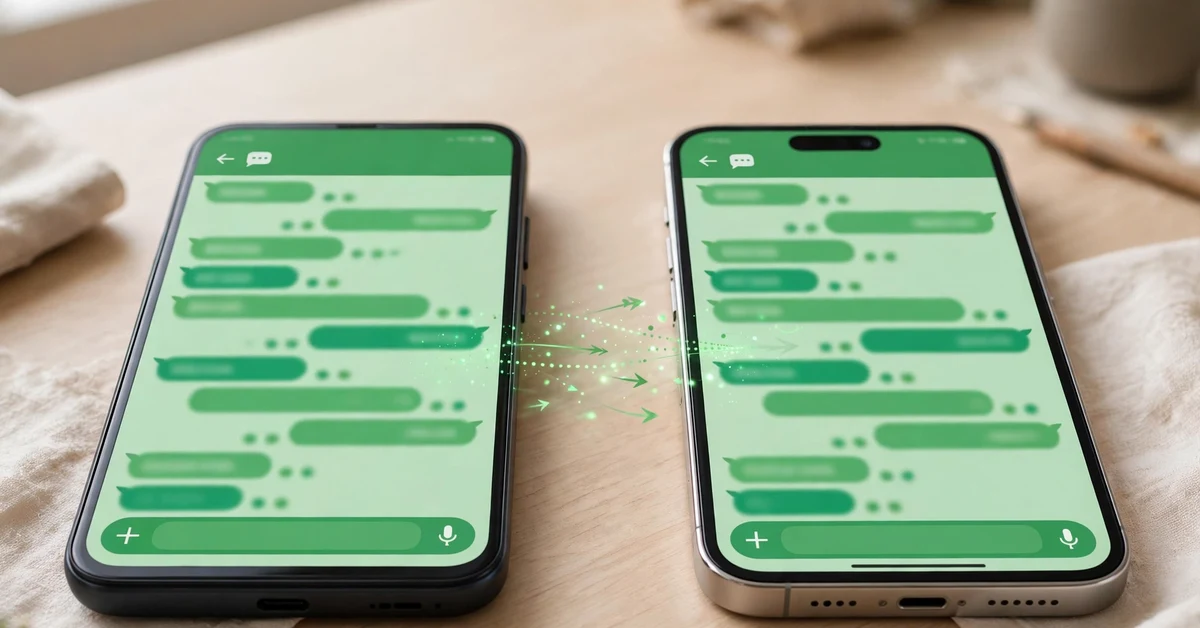
Switching from Android to iPhone is exciting, until you think about your WhatsApp chats. Years of messages, photos, and videos live in that app, and nobody wants to lose them. The good news is that you can transfer WhatsApp from Android to iPhone for free, using the official Move to iOS app. This guide shows you how to transfer WhatsApp from Android to iPhone step by step in 2026, what you need before you start, what moves across, and what to do if your iPhone is already set up.
Can You Transfer WhatsApp from Android to iPhone?
Yes. WhatsApp now supports moving chats from Android to iPhone with the Move to iOS app, and the transfer is free. Your account info, profile photo, chats, chat history, media, and settings all move to the new phone. There are two limits to know in advance. First, your iPhone must be factory new, or already factory reset, because the transfer happens during iPhone setup. Second, your call history does not transfer, and neither does your display name or media received over WhatsApp Channels. Knowing these limits before you start saves you from a nasty surprise later.
Before You Start: What You Need
Prepare both phones before you transfer WhatsApp Android to iPhone, because the transfer takes time and stops if a phone runs out of power. Check each item on this list first.
- Android 5.0 or newer on your old phone, with the latest version of WhatsApp installed from the Google Play Store.
- iOS 15.5 or newer on your iPhone, with the latest version of WhatsApp installed from the App Store.
- The Move to iOS app installed on your Android phone. WhatsApp only supports this official app, and other transfer apps can cause problems.
- The same phone number on both phones. WhatsApp moves your chats to the account tied to that number.
- A factory new or factory reset iPhone. If you already set up and used your iPhone, the official transfer is not available unless you reset it first.
- Both phones on power. Plug both phones into chargers so neither one dies halfway through.
- The same Wi-Fi network. Connect both phones to the same Wi-Fi, or connect your Android phone to your iPhone hotspot.
One more thing: back up your Android WhatsApp chats to Google Drive before you start, just in case. The Google Drive backup cannot restore directly to an iPhone, because iPhones use iCloud backups instead, but it keeps a safety copy of your chats on Android. For the official steps and the latest requirements, see the WhatsApp help page on moving chats from Android to iPhone.
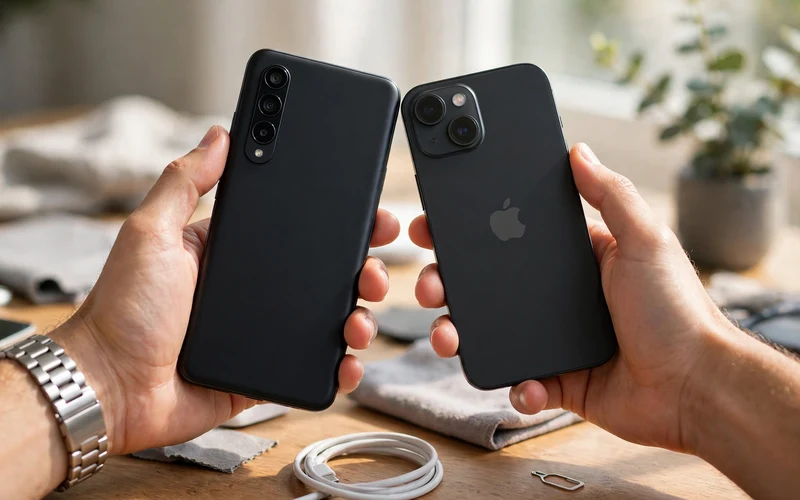
How to Transfer WhatsApp from Android to iPhone: Step by Step
Follow these steps in order. Do not skip ahead, and keep both phones close together during the whole transfer.
- Start iPhone setup. On your new or reset iPhone, follow the setup screens until you reach the Apps and Data screen. Choose to move data from Android.
- Open Move to iOS on Android. Open the Move to iOS app on your Android phone and follow the on-screen prompts.
- Enter the code. A code appears on your iPhone. When prompted, enter that code on your Android phone.
- Tap Continue. Follow the prompts on both phones until you reach the Transfer Data screen.
- Select WhatsApp. On the Transfer Data screen, select WhatsApp, then tap Start on your Android phone. WhatsApp prepares your data for export, and you will be signed out from WhatsApp on your Android phone once the data is ready.
- Return to Move to iOS. Tap Next to go back to the Move to iOS app.
- Tap Continue to transfer. Tap Continue and wait while Move to iOS moves your data to the iPhone. Wait until the app confirms the transfer is complete.
- Install WhatsApp on iPhone. Install the latest version of WhatsApp from the App Store on your iPhone.
- Log in with the same number. Open WhatsApp and log in using the same phone number you used on your Android phone.
- Tap Start when prompted. Allow the process to finish. Do not close the app while your chats load.
- Finish setup. Complete the activation of your new device, and you will see your chats waiting for you.
That is the full official method to transfer WhatsApp Android to iPhone. Apple also explains the Move to iOS process on its own support pages, which you can check at Apple Support: Move from Android to iPhone. The transfer can take a while if you have years of chats and media, so be patient and keep both phones on their chargers.
What Transfers and What Does Not
It helps to know exactly what arrives on your iPhone and what stays behind. Here is the honest list.
- Moves across: your account info, profile photo, chats, chat history, photos, videos, voice messages, documents, and settings.
- Does not move: your call history, your display name, and media received over WhatsApp Channels.
- Needs a fresh start: your Android Google Drive backup does not restore to iPhone. iPhones back up WhatsApp to iCloud instead, so set up iCloud backup on your new phone after the transfer.
After you transfer WhatsApp Android to iPhone, open WhatsApp on your iPhone, go to Settings, then Chats, then Chat Backup, and turn on iCloud backup. That way your chats are safe on the new phone from day one. Transferred data does not go to cloud storage by itself until you create that first iCloud backup.
What If Your iPhone Is Already Set Up?
This is the most common problem. The official method to transfer WhatsApp Android to iPhone only works during iPhone setup, so if you already set up and used your iPhone, the transfer option will not appear. You have three choices.
- Factory reset the iPhone. This is the cleanest fix. Back up anything already on the iPhone first, then reset it through Settings, General, Transfer or Reset iPhone, and run the steps above during setup. This is the only method WhatsApp officially supports.
- Use a paid third-party tool. Some paid tools claim to move WhatsApp chats without a reset. WhatsApp does not support these tools, results vary, and some of them need a computer and a cable. Only use a well reviewed tool, and understand the risk before you pay.
- Start fresh and keep the old phone. If your chats are not vital, set up WhatsApp as new on the iPhone and keep your Android phone for old messages. You can also export single important chats as email from WhatsApp on Android, under Chat, More, Export chat.
For most people, the factory reset is worth it. Losing years of chats costs more than the hour it takes to reset and set up the phone again.
Transfer WhatsApp Android to iPhone Not Working? Fixes
If your attempt to transfer WhatsApp Android to iPhone stalls or fails, work through these fixes in order. Most failures come from one of these causes.
- Check the code step. Make sure you typed the code from the iPhone correctly into the Android phone. If the code expired, restart the setup to get a fresh one.
- Keep both phones on the same Wi-Fi. A weak or switching network breaks the transfer. Use the iPhone hotspot for your Android phone if your home Wi-Fi is unstable.
- Update both apps. Old WhatsApp versions can fail the transfer. Update WhatsApp on both phones from the Play Store and the App Store, then try again.
- Free up space. If your iPhone storage is nearly full, the transfer cannot finish. Delete unused apps or photos first.
- Turn off battery saver and VPN. Battery saver can kill the transfer in the background, and a VPN can block the local connection between the phones.
- Do not pick the WhatsApp folder in Files. During migration, WhatsApp warns that going to Files and selecting the WhatsApp folder is not supported. Use only the steps in the Move to iOS app.
If nothing works, reset the iPhone once more and run the transfer before you install other apps or restore a backup. A clean phone with a fresh setup is the most reliable starting point.
Frequently Asked Questions
Is it free to transfer WhatsApp Android to iPhone?
Yes. The official way to transfer WhatsApp Android to iPhone uses the free Move to iOS app from Apple, and WhatsApp does not charge for the transfer. Paid third-party tools exist, but you do not need them if your iPhone is new or factory reset.
Can I transfer WhatsApp chats if my iPhone is already set up?
Not with the official method. The only free way to transfer WhatsApp Android to iPhone is Move to iOS during iPhone setup. You need to factory reset the iPhone first, or use a third-party tool, which WhatsApp does not officially support.
Does my WhatsApp call history move to iPhone?
No. WhatsApp states clearly that call history cannot be transferred from Android to iPhone. Your chats, media, and settings move, but the call log does not.
How long does the WhatsApp transfer take?
It depends on how much data you have. A small chat history takes a few minutes when you transfer WhatsApp Android to iPhone, while years of photos and videos can take an hour or more. Keep both phones plugged into power and on the same Wi-Fi for the whole time.
Can I transfer WhatsApp Business chats from Android to iPhone?
No. WhatsApp states that it is currently not possible to transfer chats from Android to iPhone on the WhatsApp Business app. The official method works only for the regular WhatsApp app.
Final Thoughts: Transfer WhatsApp from Android to iPhone
To transfer WhatsApp Android to iPhone, use the free Move to iOS app during iPhone setup, keep both phones charged and on the same Wi-Fi, and log in with the same phone number. Your chats, photos, and settings will arrive safely, and a fresh iCloud backup keeps them safe on your new phone. Once your chats are settled on your iPhone, try our guide to the best free video editing apps for iPhone to make the most of your new device. For more simple mobile guides, visit the TechOnPeak homepage or browse our Mobile Apps section.
