

Is your laptop slow to start, slow to open apps, and slow to do simple tasks? You are not alone. Many Windows 11 laptops slow down over time, and the cause is often simple: too many startup apps, a full drive, or one app that eats all the memory. The good news is that you can fix most of this yourself, for free, in under an hour. This guide shows how to speed up Windows 11 laptop slow performance fix steps that are safe, simple, and built into Windows. You will find the real cause, try five quick fixes, and then work through 10 proven fixes.
Why Is Your Windows 11 Laptop So Slow?
A slow laptop is rarely broken. A few small problems often add up and steal your speed. When you know the cause, the fix is easy, and you can speed up Windows 11 laptop performance for free.
- Too many startup apps. Apps that open with Windows use memory and CPU from the first minute.
- A full drive. When your main drive is nearly full, Windows has little room to work.
- Background apps. Chat apps, cloud sync tools, and updaters keep running after you close them.
- Old updates and drivers. Missing updates and old drivers can cause lag and poor speed.
- Heat. A hot laptop slows itself down to stay safe, and dust in the vents makes heat worse.
- Visual effects. Animations and transparency look nice but use graphics power on weaker laptops.
- Old hardware. Very old laptops may stay slow even after every fix. Microsoft notes an upgrade can be the long-term answer.
First, Find the Cause With Task Manager
Before you change anything, spend two minutes to find what is slowing your laptop. Task Manager shows you which app uses the most CPU, memory, or disk. This is the fastest way to speed up Windows 11 laptop performance.
Press Ctrl + Shift + Esc to open Task Manager. Click the Processes tab and sort by CPU, then by Memory, then by Disk. Look at the top of each list. If one app sits at the top of all three, that app is your main problem. A browser with 40 open tabs is a common culprit.
Task Manager also has an Efficiency Mode. Right-click a hungry app to calm it down. If the disk column shows 100 percent for a long time, your drive is the bottleneck. If memory sits near full, too many apps are open.
5 Quick Fixes to Try First
These five quick fixes take about 10 minutes. They are a good windows 11 lag fix on their own.
- Restart your laptop. A restart clears stuck processes and frees memory. It is the simplest slow laptop fix.
- Close apps you are not using. Each open app uses memory. Close tabs you do not need, and quit apps you are not using.
- Check for Windows updates. Go to Settings, then Windows Update, and install any updates you see. Restart after they install.
- Run a malware scan. Malware can slow a laptop badly. Open Windows Security, choose Virus and threat protection, and run a full scan.
- Free a little space. Delete files you no longer need and empty the Recycle Bin.
If your laptop already feels faster, great. Keep going, because the 10 fixes below will speed up Windows 11 laptop use even more.
How to Speed Up Windows 11 Laptop Slow Performance Fix in 10 Steps
Here are the 10 fixes that matter most, all safe and using tools already in Windows.
1. Install Windows and Driver Updates
Open Settings, go to Windows Update, and click Check for updates. Install everything it offers, then restart. Then open Device Manager, right-click your display and network adapters, and choose Update driver.
2. Disable Unnecessary Startup Apps
Press Ctrl + Shift + Esc, then click the Startup apps tab. Right-click any app you do not need at startup and choose Disable. Keep your security app enabled. This is one of the best ways to speed up Windows 11 laptop startup time.
3. Uninstall Apps You No Longer Use
Open Settings, go to Apps, then Installed apps. Sort by size and find apps you never open. Click the three dots next to an app and choose Uninstall. Each removal frees space and helps speed up Windows 11 laptop boot.
4. Free Up Disk Space With Storage Sense
Open Settings, go to System, then Storage. Turn on Storage Sense so Windows clears temp files on its own. Then click Temporary files, tick the safe items, and remove them. Aim to keep at least 10 to 15 percent of your main drive free.
5. Stop Unused Apps Running in the Background
Some apps keep running after you close them. Open Settings, go to Apps, then Installed apps. Click the three dots next to an app, choose Advanced options, and set Background apps permissions to Never. This cuts memory use and helps you optimize Windows 11 for speed.
6. Reduce Visual Effects
Windows 11 animations and shadows look smooth but cost power. Search for “Adjust the appearance and performance of Windows” in the Start menu and open it. On the Visual Effects tab, choose Adjust for best performance and click Apply. Your screen will look plainer, but windows will open faster. Turn off transparency effects too, in Settings, under Personalization and then Colors.
7. Set Power Mode to Best Performance
Open Settings, go to System, then Power and battery. Under Power mode, choose Best performance. Your laptop runs faster because Windows stops holding back the CPU to save power. Note that this drains the battery faster and the laptop may run warmer, so use it when plugged in. For a full guide to heat and speed, see our article on how to fix laptop overheating on Windows 11.
8. Optimize Your Drives
Search for “Defragment and Optimize Drives” in the Start menu. Select your main drive and click Optimize. Windows will defrag a hard drive or trim a solid-state drive, which keeps files tidy and helps speed up Windows 11 laptop file access. Run this once a month.
9. Check for Malware With Windows Security
Open Windows Security, choose Virus and threat protection, and run a full scan. If it finds anything, let it remove the threat and restart. Malware is a hidden cause of slow speed. Run a scan once a month, and keep real-time protection on.
10. Restart and Test Your Laptop
After the nine fixes above, restart your laptop and open the apps you use every day. Startup should be quicker and switching between windows smoother. If one app is still slow, open Task Manager again and check what it uses. For the official list, Microsoft’s guide on tips to improve PC performance in Windows covers the same steps in detail.
Speed vs Battery: What to Know About Best Performance Mode
Best performance mode trades battery life for speed. Use it when you are plugged in or running heavy apps. On battery, while only browsing or writing, switch back to Balanced mode.
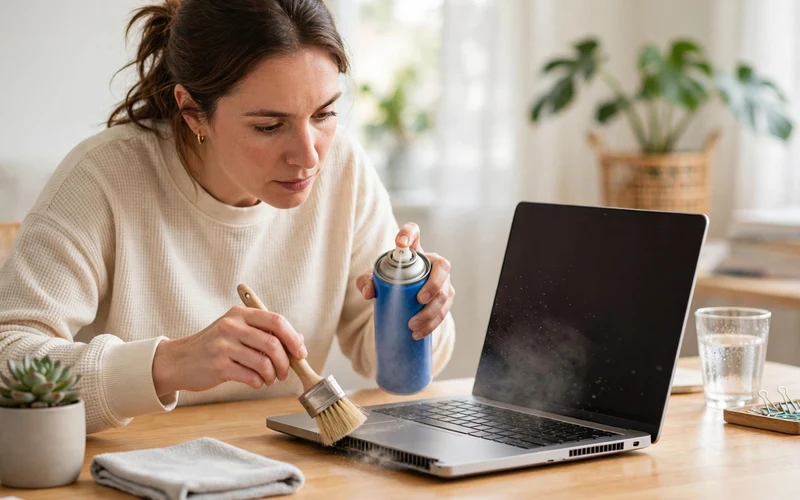
Heat matters here too. Best performance mode makes the CPU work harder, so the laptop runs warmer. Keep the vents clear and the laptop on a hard, flat surface. Never use it on a bed or a blanket, because soft surfaces block the air flow. If the fan gets loud, switch back to Balanced and let it cool. A cool laptop is a fast laptop.
What to Avoid When You Speed Up Windows 11
Not every speed trick on the web is safe. Skip these four traps when you try to speed up Windows 11 laptop performance.
- Third-party cleaner and optimizer apps. Every fix in this guide uses tools already in Windows. Cleaner apps can delete useful files and cause new problems.
- Registry cleaners and registry edits. Editing the registry is risky, and registry cleaners are not needed.
- Random speed boost downloads. Sites that promise one-click speed often install ads or malware. Only download software from the official maker.
- Disabling Windows Security. Never turn off your built-in protection to gain speed. It guards you against the malware that causes slow speed.
Stick to the built-in tools and the steps above. They are safe, free, and the same steps Microsoft recommends. The Computerworld guide to speeding up Windows 11 reaches the same conclusion: the built-in tools are enough.
Frequently Asked Questions
Why is my Windows 11 laptop so slow all of a sudden?
A sudden slowdown often comes from a recent update, a new app, or a background scan. Restart first, then open Task Manager with Ctrl + Shift + Esc and find the app using the most CPU or memory.
How can I speed up Windows 11 laptop performance for free?
You can speed up Windows 11 laptop performance for free with the built-in Windows tools. Disable startup apps, uninstall apps you do not use, turn on Storage Sense, reduce visual effects, and set power mode to Best performance.
Will Best performance mode damage my laptop?
No, it will not damage your laptop. It uses more power and makes the laptop warmer, so the battery drains faster. Use it when plugged in, and switch back to Balanced mode on battery.
Is it safe to disable startup apps?
Yes, it is safe to disable most startup apps. Only keep your security app and any app you truly need at startup. You can still open a disabled app by hand whenever you want.
Do I need a third-party optimizer to fix a slow laptop?
No, you do not need a third-party optimizer. Windows 11 already has Storage Sense, Task Manager, Windows Security, and drive optimization built in. These tools cover every fix in this guide.
Final Thoughts: How to Speed Up Windows 11 Laptop Slow Performance Fix
A slow laptop does not mean you need a new one. Start with Task Manager, try the five quick fixes, then work through the 10 steps in this guide. Most laptops feel clearly faster after a restart, a cleanup, and fewer startup apps. That is how you speed up Windows 11 laptop use for free. For more guides, visit the TechOnPeak homepage or browse our Technology section.
