

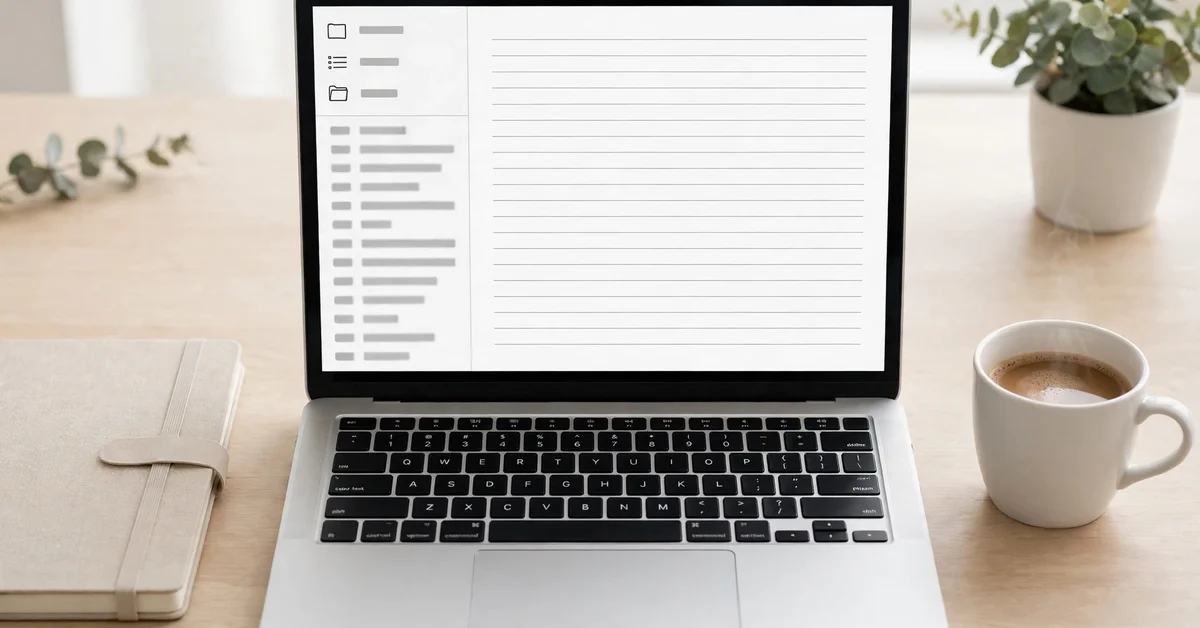
Notion can look confusing the first time you open it. You see a blank page, a sidebar full of options, and no clear place to start. Many beginners close the app at this point, and that is a shame, because Notion is one of the easiest tools to learn once someone shows you the basics. This guide will teach you how to use Notion for beginners in plain and simple steps. You will learn how to set up your free account, build pages, use blocks, and organize your notes, tasks and projects in one place. By the end, you will have a workspace that fits your life, whether you study, work, or plan your own projects.
What Is Notion and Why Beginners Love It
Notion is an all-in-one workspace for notes, tasks, databases and wikis. You keep notes, to-do lists, calendars and project plans in one place. A student can keep class notes and exam dates together.
Everything in Notion is built from blocks. A block is one small piece of content, such as a line of text, a heading, a to-do item, an image, or a table. You stack blocks on a page and move them around at any time. This simple idea is the heart of how to use Notion for beginners. The free plan gives you unlimited pages and blocks.
How to Set Up Your Free Notion Account
Setting up Notion takes only a few minutes. Follow these steps.
- Go to the official site. Open Notion’s official site and click the button to get started for free.
- Sign up. Use your email and a password, or sign up with your Google account, then confirm your email.
- Answer the setup questions. Notion asks how you plan to use it, so it can suggest starter pages.
- Pick the free plan. It gives you unlimited pages and blocks without paying.
- Download the apps. Install Notion on your computer and phone.
That is the whole notion setup guide. Open Notion, click New Page, and you are ready to learn how to use Notion for beginners.
Learn the Notion Interface: The Sidebar and Quick Find
The sidebar on the left is your map of Notion. At the top you will see Search, which is also called Quick Find. Click it, or press Ctrl + P on Windows or Cmd + P on Mac, and you can jump to any page in seconds.
Below Search, the sidebar shows All Updates, where you see changes made by people you share pages with. Settings sits near the bottom, and it is where you change your account and how Notion looks. Templates opens the built-in templates gallery. The rest of the sidebar is your page list, and you can drag pages to reorder them or nest them.
Star your most used pages so they stay at the top, and use Quick Find instead of scrolling. Learn these parts once, and you will know how to use Notion for beginners with confidence.
Pages and Blocks: The Heart of Notion
Every piece of work in Notion lives on a page, and every page is made of blocks. To create a page, click New Page in the sidebar or press Ctrl + N on Windows or Cmd + N on Mac.
To add a block, click on the page and start typing, or type the slash key “/” to open the block menu. The most useful blocks for beginners are to-do lists, headings, bullet lists, tables, and images.
Pages can also contain sub-pages. A page called “School” can hold sub-pages for each subject, and a page alled “Work” can hold sub-pages for each project. To make a sub-page, type “/” and choose Page. Try it now: make a page called “My Day”, add a heading that says “Today”, and add three to-do blocks. That is how to use Notion for beginners in its simplest form.
Databases in Notion: Tables, Boards, Calendars and More
A database is a collection of pages that share the same structure. In Notion, a database is just a smart list. When you learn how to use Notion for beginners, databases turn simple notes into a real system.
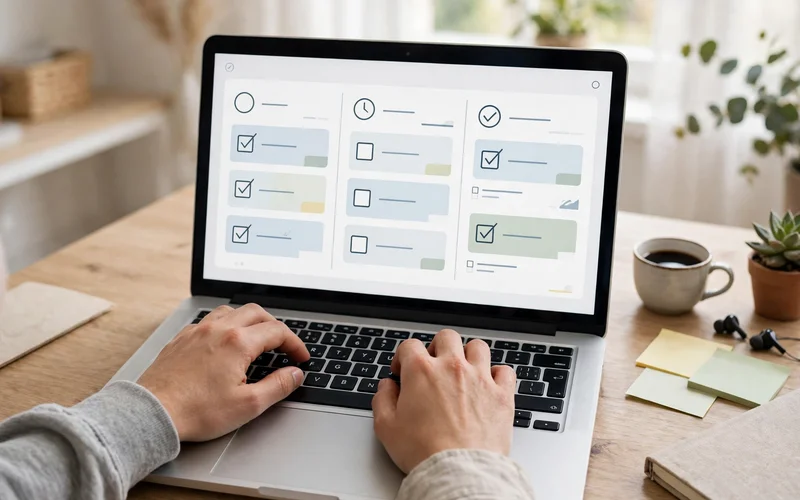
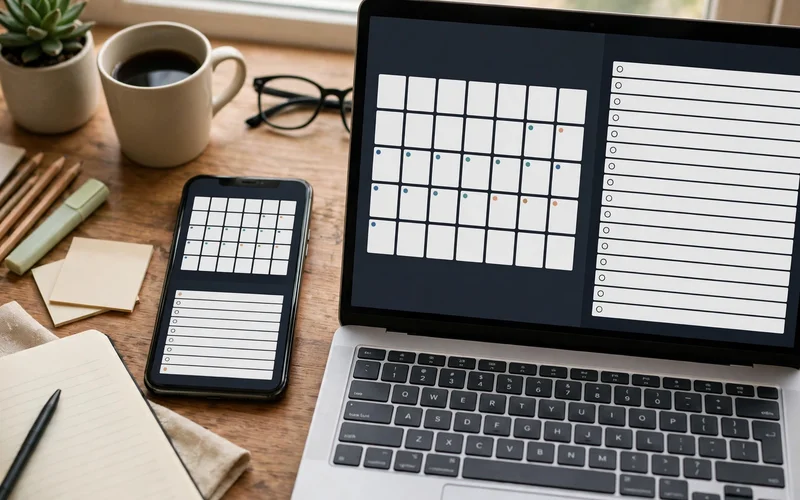
Notion databases come in five main views, and you can switch between them at any time without losing data. Table view looks like a spreadsheet. Board view is a kanban board, with cards you drag between columns such as To Do, Doing, and Done. Calendar view shows items on dates. Gallery view shows items as cards with images. Timeline view plans projects over weeks.
To create your first database, type “/” on a blank page and choose Table. Give it a name, such as “My Tasks”, and add a few rows. Add a Status property and a Due Date property. Then switch to Board view and you will see the same tasks as cards you can drag across columns. Keep it simple: start with one database for tasks.
Start Faster with Notion Templates
Templates are ready-made pages built by Notion and by other users, and they are the fastest way to learn what Notion can do. The free built-in templates gallery has templates for meeting notes, habit trackers, reading lists, budget plans, and much more. Open Templates from the sidebar, pick one that matches your need, and click to add it to your workspace.
Templates save time and teach you by example. You do not need to design a task tracker from scratch when a good one already exists. Open a template, study how it is set up, and copy the ideas you like. This is one of the fastest ways to learn how to use Notion for beginners.
How to Use Notion for Students
Notion for students is one of the most popular ways to use the app, because it replaces notebooks, planners, and scattered files with one workspace. Start with a page called “School” and add a sub-page for each subject. Inside each subject page, keep your class notes as blocks, with headings for each topic and to-do items for homework.
A simple student setup has four parts: a class notes page for each subject, a task database for homework with Due Date and Status properties, a reading list, and a weekly planner page with your three most important tasks. You can also share a page with a classmate, and the free plan allows up to 10 guest collaborators. Share only the pages you want others to see. This is a simple way to learn how to use Notion for beginners at school.
How to Use Notion for Work and Projects
Notion works just as well for work as it does for study. Start with a page for your team or business, with sub-pages for each project. Inside each project page, keep a short goal at the top, a task database in Board view, and a meeting notes page for decisions. This is how to use Notion for beginners at work.
Notion works well as a simple project tracker, and it can replace a separate task app for many small teams. If you want to compare it with other options, our guide to free project management tools for small teams shows other tools that work alongside Notion. For a deeper look, this beginner’s Notion guide for work management explains how teams set up Notion for daily work.
Keyboard Shortcuts and Tips to Work Faster
You only need three shortcuts to start. Press Ctrl + N on Windows or Cmd + N on Mac to create a new page. Press Ctrl + P on Windows or Cmd + P on Mac to open Quick Find and jump to any page. Press Ctrl + / on Windows or Cmd + / on Mac to change the type of the block you are on. That is how to use Notion for beginners, one shortcut at a time.
Use the slash key “/” to add any block without touching the mouse. Keep your most used pages starred in the sidebar so you reach them in one click. The best tip of all is to start small: build one page, use it for a week, and then add one more.
Free vs Plus: Which Plan Do You Need?
Most beginners never need to pay for Notion. The free plan includes unlimited pages and blocks and up to 10 guest collaborators, which is enough for notes, tasks, personal projects, and small study groups. Learn Notion free for a few months before you think about an upgrade.
The Plus plan adds larger file uploads, longer page history, and more guests, and it costs around $10 per user per month. Always check the current price on the official site before you decide, because prices can change. You need Plus only when you hit a real limit, such as needing more than 10 guests.
Frequently Asked Questions
Is Notion free for beginners?
Yes. The free plan includes unlimited pages and blocks and up to 10 guest collaborators. You can learn how to use Notion for beginners without paying anything.
How long does it take to learn Notion?
You can learn how to use Notion for beginners in one afternoon. Pages, blocks, and the sidebar take about an hour to learn.
Can I use Notion on my phone and computer?
Yes. Notion has apps for Windows, Mac, iPhone, and Android, and it also works in a browser. Everything stays in sync.
What is the difference between a page and a database in Notion?
A page is a single document made of blocks, such as a note or a plan. A database is a collection of pages that share the same structure, with views such as a table or a board.
Is Notion good for students?
Yes. Notion for students works well for class notes, homework tracking, exam dates, and reading lists.
Final Thoughts: How to Use Notion for Beginners
Learning how to use Notion for beginners comes down to a few simple ideas. Notion is a workspace of pages, pages are made of blocks, and databases turn simple lists into smart systems. Set up your free account, learn the sidebar, build your first page, and try one template.
Start today with one page. Make a page called “My Day”, add three to-do items, and tick one off before lunch. For more simple software guides, visit the TechOnPeak homepage or browse our Software Guides section.
